

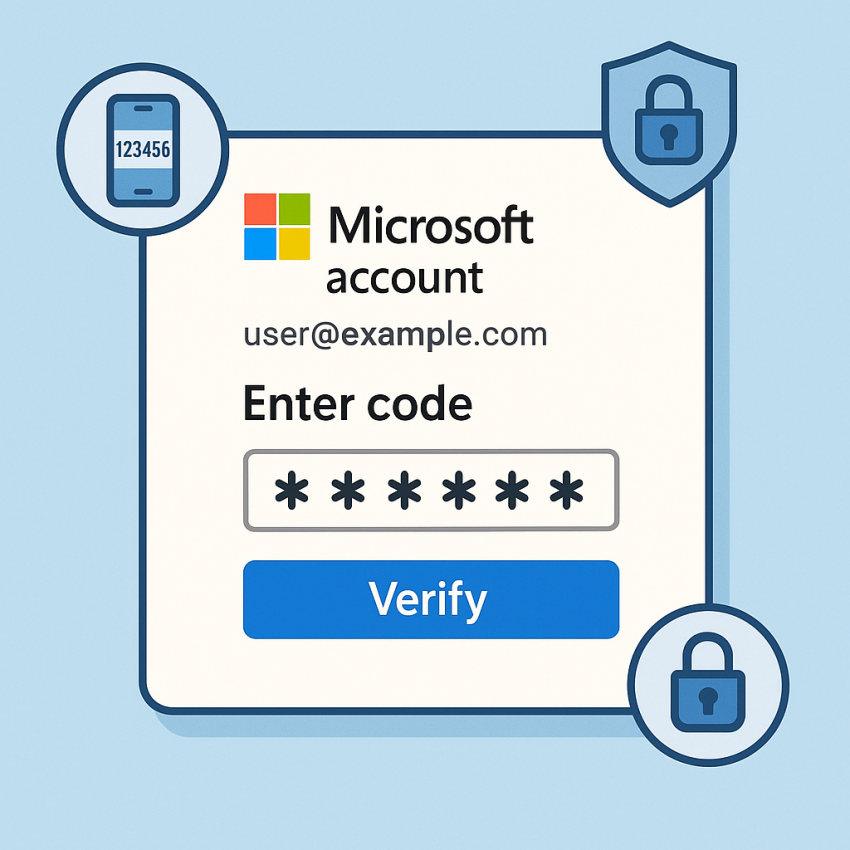

Microsoft Accounts and Verification
Microsoft accounts are the gateway to Windows, Office 365, Outlook, and other Microsoft services. This guide covers best practices for using Microsoft accounts securely, including OTP verification, account privacy, and practical tips for everyday use.
TL;DR
Microsoft accounts provide centralized access to many Microsoft services. Enable two-factor authentication (OTP), use a trusted authenticator, and keep recovery options up to date to protect your account.
Why use Microsoft accounts
- Unified access to Windows, Office, OneDrive, and more
- Enhanced security with OTP and modern authentication
- Simplified sign-in across devices and apps
How to set up and manage Microsoft accounts
- Visit account.microsoft.com and sign in with your Microsoft account credentials.
- Navigate to Security > Advanced security options to enable two-factor authentication (OTP).
- Choose your preferred verification method: authenticator app (recommended) or SMS.
- Set up Microsoft Authenticator or another authenticator app for code generation.
- Review trusted devices, recovery options, and recent activity regularly.
- When needed, use secure password generation tools and keep your credentials private.
Comparison: Microsoft accounts verification methods
| Method | Pros | Cons |
|---|---|---|
| Password only | Simple; quick sign-in | Less secure; high risk if password is stolen |
| OTP via authenticator app | Strong security; phishing resistant | Requires device access |
| OTP via SMS | Easy to use; works without internet | SIM swap risk; depends on mobile coverage |
| Biometric/Windows Hello | Convenient; hard to spoof | Requires compatible device |
Safe and legal use
- Use OTP as an extra layer of security, not as a replacement for a strong password.
- Keep recovery methods up to date and store backup codes securely.
- Do not share verification codes with others or use them for unauthorized access.
- Respect local laws and terms of service when using verification tools.
FAQ
Q: What is a Microsoft account?
A: A Microsoft account is a single login used to access Microsoft services such as Windows, Outlook, and Office 365.
Q: How do I enable two-factor authentication for Microsoft accounts?
A: Sign in to account.microsoft.com, go to Security > Advanced security options, and follow the prompts to set up OTP via an authenticator app or SMS.
Q: Can I use SMS OTP with Microsoft accounts?
A: Yes, you can receive a one-time code by SMS, but using an authenticator app is generally more secure and reliable.
Q: Is it safe to share verification codes?
A: No. Verification codes should be kept confidential and used only by the account owner.
Q: What if I forget my Microsoft account password?
A: Use the account recovery options at account.microsoft.com to regain access, including trusted email or phone options.
Q: What should I do if I suspect unauthorized access?
A: Sign in, change your password, review activity, and enable two-factor authentication immediately.
Get started with secure verification
Protect your Microsoft accounts with OTP and modern authentication. Explore the password generation tool and verification resources from SMSPVA:
For additional security tips, visit external resources like Google Security or learn about Microsoft accounts on Wikipedia.
Need more details? See the official support pages: Microsoft Support and the WhatsApp site for secure messaging options.